Using the API
This tutorial walks through the capabilities of the API, starting with a broad overview of your parks and narrowing to individual trail visualizations. By the end, you'll know how to query parks and trails, use semantic and hybrid search, generate visualizations, build a 3D elevation profile for a specific trail, and use natural language search.
The tutorial assumes you've completed the Getting Started guide and run the full data collection pipeline. You can follow these examples in either local API mode:
- If you started the full Docker stack with
make up, the API base URL ishttp://localhost:8000. - If you are using the recommended day-to-day workflow with
make dev, the API base URL ishttp://localhost:8001.
The examples below use curl with python3 -m json.tool for pretty-printed output. You can also paste the URLs directly into your browser, which is particularly useful for the visualization endpoints that return images and interactive HTML.
Tip: The examples below use
http://localhost:8000for brevity because that is the Docker API port. If you're running the API withmake dev, replacehttp://localhost:8000withhttp://localhost:8001. If you want to use the live demo instead, replacehttp://localhost:8000withhttps://seanangio-nps-hikes.onrender.com. Note that visualization endpoints and the natural language query endpoint (/query) are only available locally.
Python SDK
If you prefer working with Python objects instead of raw JSON, there is a Python SDK that wraps the 6 data endpoints. It gives you typed Pydantic models with IDE autocomplete, meaningful exceptions like ParkNotFoundError, and no need to construct URLs or parse JSON yourself.
pip install git+https://github.com/seanangio/nps-hikes-python-sdk.git
from nps_hikes import Client

client = Client()

trails = client.get_trails(park_code="yose", min_length_mi=5.0)
for trail in trails.trails:
    print(f"{trail.trail_name}: {trail.length_miles} mi")
See the SDK README for the full method reference, error handling, and configuration options.
Orient yourself
To get started with the API, first confirm that the API is running and that the database is connected:
curl http://localhost:8000/health | python3 -m json.tool
You should see:
{
    "status": "healthy",
    "database": "connected"
}
The root endpoint lists all available endpoints:
curl http://localhost:8000/ | python3 -m json.tool
{
    "name": "NPS Trails API",
    "version": "1.1.0",
    "description": "Query National Park trail data from OpenStreetMap and The National Map",
    "documentation": {
        "swagger_ui": "/docs",
        "redoc": "/redoc",
        "openapi_json": "/openapi.json"
    },
    "endpoints": {
        "query": "/query",
        "search": "/search",
        "parks": "/parks",
        "trails": "/trails",
        "hiked_points": "/trails/hiked-points",
        "stats": "/stats",
        "stats_parks": "/stats/parks",
        "park_summary": "/parks/{park_code}/summary",
        "us_static_park_map": "/parks/viz/us-static-park-map",
        "us_interactive_park_map": "/parks/viz/us-interactive-park-map",
        "static_map": "/parks/{park_code}/viz/static-map",
        "elevation_matrix": "/parks/{park_code}/viz/elevation-matrix",
        "trail_3d_viz": "/parks/{park_code}/trails/{trail_slug}/viz/3d",
        "health_check": "/health"
    }
}
Tip: For a full interactive reference, open
http://localhost:8000/docsif you're usingmake up, orhttp://localhost:8001/docsif you're usingmake dev. The Swagger UI lets you try every endpoint, inspect request/response schemas, and experiment with query parameters.
Browse your parks
The /parks endpoint returns a park_count, a visited_count, and a parks array. Each park includes its 4-letter code, name, state, coordinates, and NPS URL.
curl http://localhost:8000/parks | python3 -m json.tool
To see only the parks from your visit log, add the visited filter:
curl "http://localhost:8000/parks?visited=true" | python3 -m json.tool
{
    "park_count": 3,
    "visited_count": 3,
    "parks": [
        {
            "park_code": "acad",
            "park_name": "Acadia",
            "full_name": "Acadia National Park",
            "designation": "National Park",
            "states": "ME",
            "latitude": 44.3386,
            "longitude": -68.2733,
            "url": "https://www.nps.gov/acad/index.htm",
            "visit_month": "Oct",
            "visit_year": 2024
        },
        ...
    ]
}
Visited parks include visit_month and visit_year from your visit log. Flip the filter to see your park bucket list:
curl "http://localhost:8000/parks?visited=false" | python3 -m json.tool
For richer responses, add description=true to include the full NPS description for each park:
curl "http://localhost:8000/parks?visited=true&description=true" | python3 -m json.tool
See the big picture
The API can serve map visualizations of all your parks. These endpoints return pre-generated images, so you need to generate them first. Run the US park map profiling module:
POSTGRES_HOST=localhost POSTGRES_PORT=5433 python profiling/orchestrator.py us_park_map
Now open the static map in your browser:
http://localhost:8000/parks/viz/us-static-park-map
This returns a PNG image showing all national parks on a US map with Alaska and Hawaii insets. Parks are color-coded by your visit log.
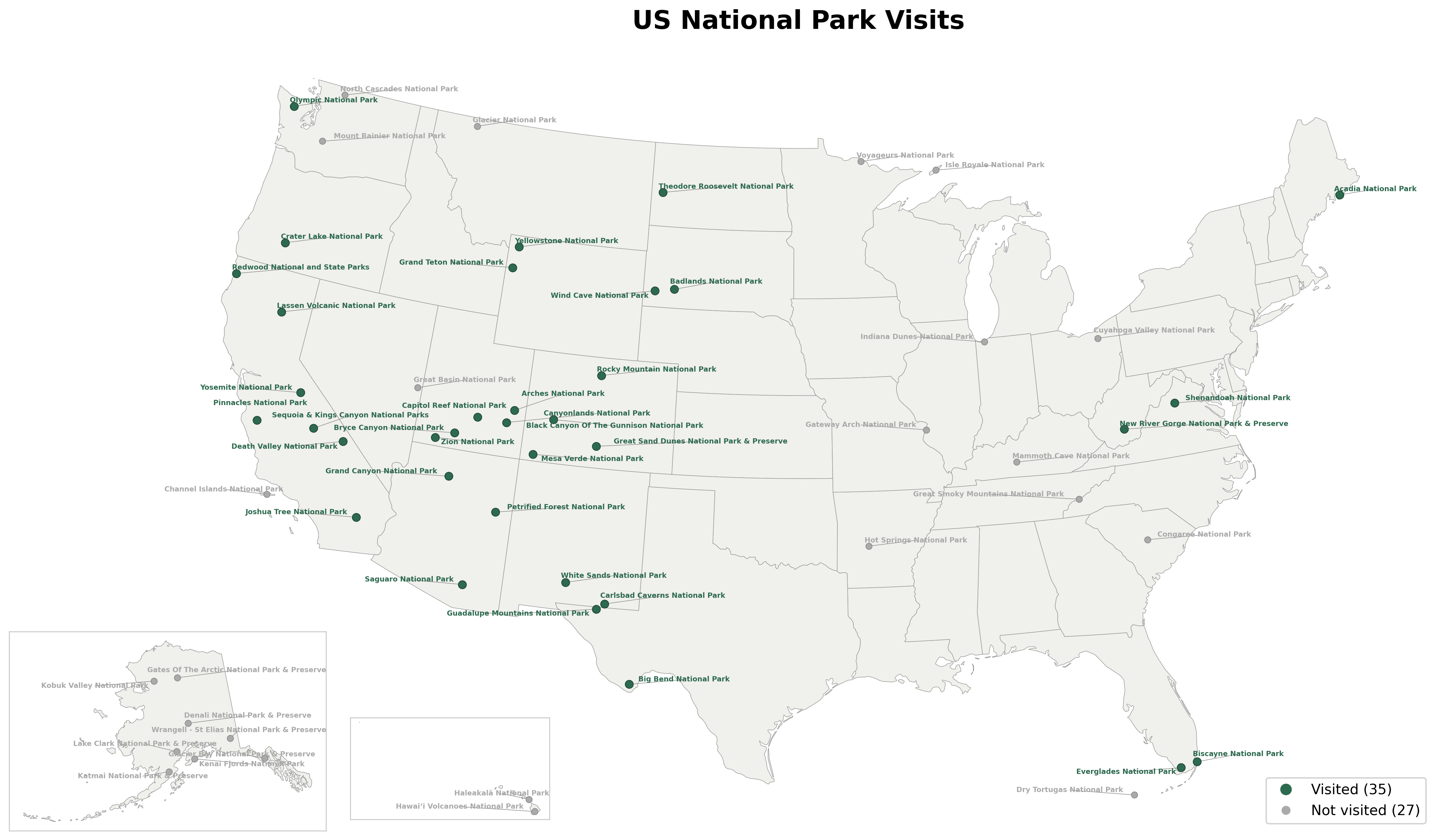
For an interactive version with hover tooltips and park boundaries, open:
http://localhost:8000/parks/viz/us-interactive-park-map
You'll get an HTML page with a zoomable Plotly map. Hover over any park to see its name, state, and visit status. You can zoom in to see (rough) park boundary outlines.
Park-level visualizations
The API also serves per-park trail maps and elevation charts. Generate them with:
POSTGRES_HOST=localhost POSTGRES_PORT=5433 python profiling/orchestrator.py visualization usgs_elevation_viz
Note: The
visualizationmodule generates static trail maps for every park with trail data. Theusgs_elevation_vizmodule generates elevation matrices for parks with elevation data. Depending on how many parks have data, this may take a few minutes.
Static trail map
Open a trail map for a specific park using its 4-letter code:
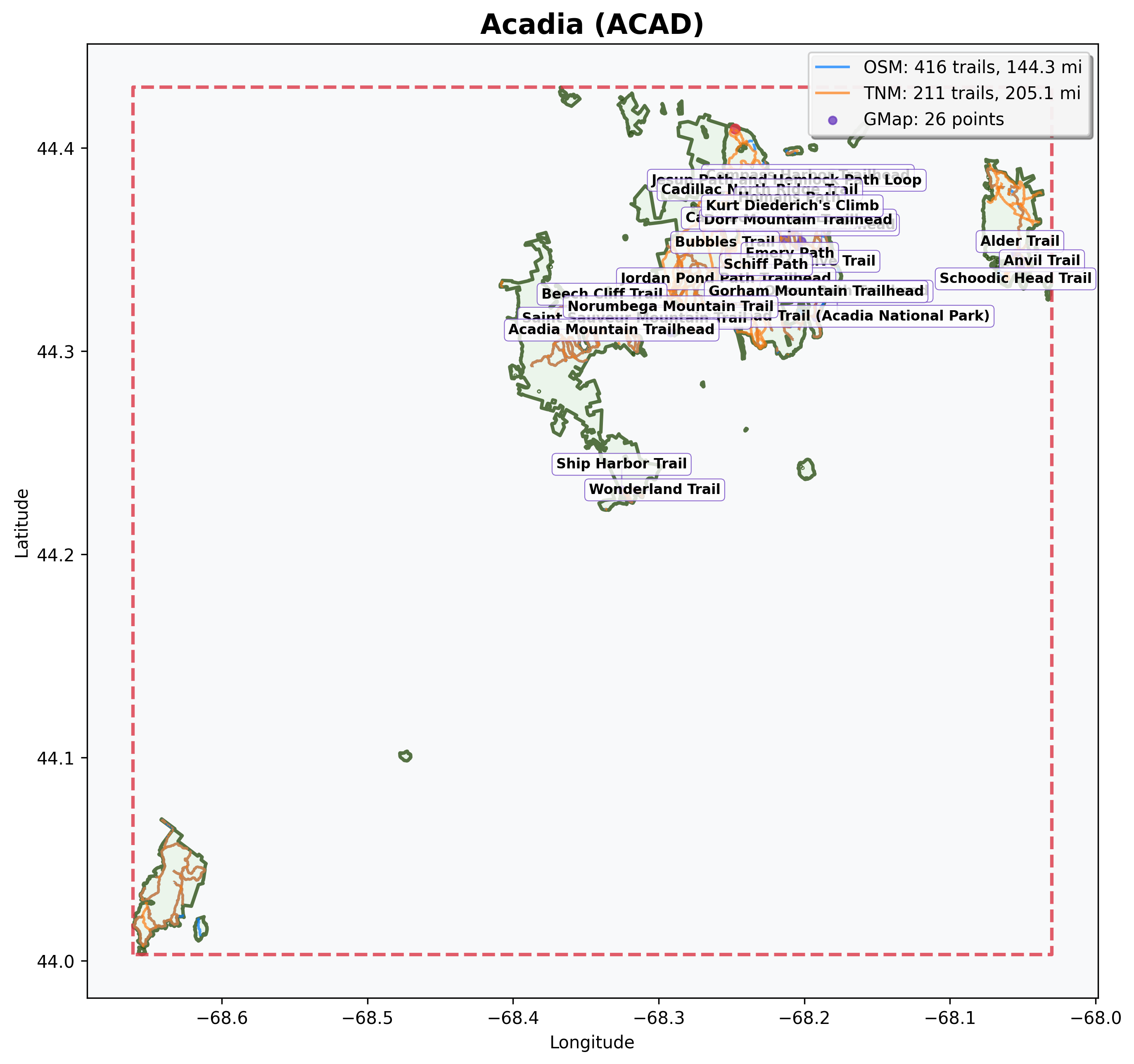
http://localhost:8000/parks/acad/viz/static-map
The response is a PNG image showing the park boundary and all collected trails. Trails are color-coded by data source: blue for OpenStreetMap, orange for The National Map. Purple points mark hiking locations imported from your KML files.
Tip: Replace
acadwith any park code to see its trail map (for example,/parks/yose/viz/static-mapfor Yosemite).
Elevation matrix
For parks where you have matched trails with elevation data, there's an elevation profile matrix:
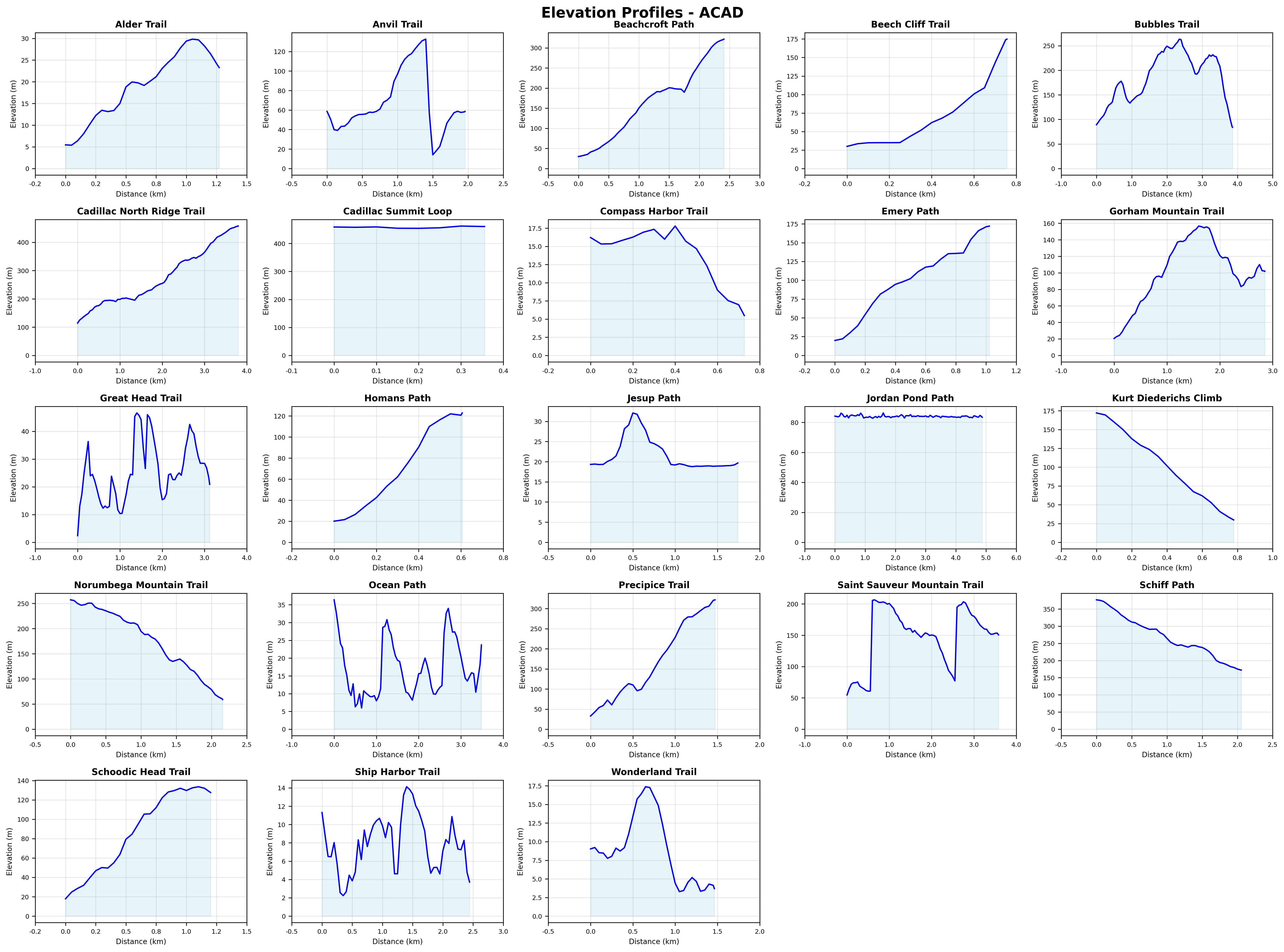
http://localhost:8000/parks/acad/viz/elevation-matrix
This returns a PNG grid of elevation charts, one per matched trail. Each chart shows distance on the x-axis and elevation on the y-axis, giving you a quick visual comparison across trails.
Explore trails
The /trails endpoint returns trail data from both The National Map (TNM) and OpenStreetMap (OSM). Start by querying trails for a specific park:
curl "http://localhost:8000/trails?park_code=acad" | python3 -m json.tool
The response includes a trail_count, total_miles, a trails array, and pagination metadata. Each trail includes:
| Field | Description |
|---|---|
trail_id |
Unique identifier (from TNM or OSM) |
trail_name |
Trail name |
source |
Data source (TNM or OSM) |
length_miles |
Trail length in miles |
hiked |
Whether you've hiked this trail (matched from your KML files) |
viz_3d_available |
Whether a 3D visualization can be generated |
viz_3d_slug |
URL slug for the 3D endpoint (if available) |
When querying a single park, results are sorted by length (longest first). When querying across multiple parks, results are sorted by park code and trail name.
Note: The API deduplicates trails that appear in both data sources. When a TNM trail and an OSM trail in the same park share more than 70% name similarity, the API keeps the TNM version. This avoids double-counting while preferring the more detailed TNM data.
Pagination
The /trails endpoint returns paginated results to keep response sizes manageable. By default, you get 50 trails per page:
curl "http://localhost:8000/trails?park_code=yose" | python3 -m json.tool
The response includes pagination metadata:
{
    "trail_count": 50,
    "total_miles": 342.7,
    "trails": [...],
    "pagination": {
        "limit": 50,
        "offset": 0,
        "total_count": 127,
        "has_next": true,
        "has_prev": false
    }
}
The pagination object tells you:
limit: Items per page (50 by default)offset: Number of items skipped (0 for first page)total_count: Total trails matching your queryhas_next: Whether there are more pageshas_prev: Whether there are previous pages
To get the next page, increase the offset:
curl "http://localhost:8000/trails?park_code=yose&limit=50&offset=50" | python3 -m json.tool
Or use page-based navigation (more intuitive):
# Page 1 (first 25 trails)
curl "http://localhost:8000/trails?park_code=yose&page=1&page_size=25" | python3 -m json.tool

# Page 2 (next 25 trails)
curl "http://localhost:8000/trails?park_code=yose&page=2&page_size=25" | python3 -m json.tool
You can request up to 1000 trails per page:
curl "http://localhost:8000/trails?limit=1000" | python3 -m json.tool
Tip: Use
has_nextandhas_prevflags to build navigation controls in your app. Usetotal_countto show "Showing 1-50 of 127 trails" messages.
Filter by data source
Compare what each data source provides:
curl "http://localhost:8000/trails?park_code=acad&source=TNM" | python3 -m json.tool
curl "http://localhost:8000/trails?park_code=acad&source=OSM" | python3 -m json.tool
Filter by hiked status
See which trails you've hiked based on your KML data:
curl "http://localhost:8000/trails?hiked=true" | python3 -m json.tool
Or find trails you haven't hiked yet in a specific park:
curl "http://localhost:8000/trails?park_code=acad&hiked=false" | python3 -m json.tool
Filter by length
Find trails within a specific length range:
curl "http://localhost:8000/trails?min_length=5&max_length=15" | python3 -m json.tool
Filter by state
Query trails across all parks in a state:
curl "http://localhost:8000/trails?state=CA" | python3 -m json.tool
You can combine multiple states by repeating the parameter:
curl "http://localhost:8000/trails?state=CA&state=UT" | python3 -m json.tool
Note: State parameters surface state data as returned from the NPS API, rather than geographic validation. Keep this in mind when querying trails in parks that span multiple states (Yellowstone for example).
Check your stats
The /stats endpoint gives you aggregate numbers across all trails:
curl http://localhost:8000/stats | python3 -m json.tool
The response includes total trails, total miles, average trail length, parks and states visited, a source breakdown (TNM vs OSM), and the longest and shortest trails.
Filter to just the trails you've hiked for personal stats:
curl "http://localhost:8000/stats?hiked=true" | python3 -m json.tool
For a per-park breakdown sorted by trail count, use /stats/parks:
curl "http://localhost:8000/stats/parks" | python3 -m json.tool
Each entry shows the park's trail count, total miles, and average trail length. Add hiked=true to see only parks where you've hiked.
The 3D trail journey
The most detailed visualization in the API is an interactive 3D elevation profile for individual trails. Getting there takes a few steps because you need to discover which trails have elevation data and find their URL slugs.
Find trails with 3D data
Start by filtering for trails with 3D visualizations available:
curl "http://localhost:8000/trails?park_code=acad&viz_3d=true" | python3 -m json.tool
In the response, look for the viz_3d_slug field on each trail:
{
    "trail_count": 2,
    "pagination": {
        "limit": 50,
        "offset": 0,
        "total_count": 2,
        "has_next": false,
        "has_prev": false
    },
    "trails": [
        {
            "trail_id": "123456",
            "trail_name": "Jordan Pond Path",
            "park_code": "acad",
            "source": "TNM",
            "length_miles": 3.4,
            "hiked": true,
            "viz_3d_available": true,
            "viz_3d_slug": "jordan_pond_path"
        },
        ...
    ]
}
The viz_3d_slug value is what you need for the next step.
Open the 3D visualization
Build the URL using the park code and trail slug, and open it in your browser:
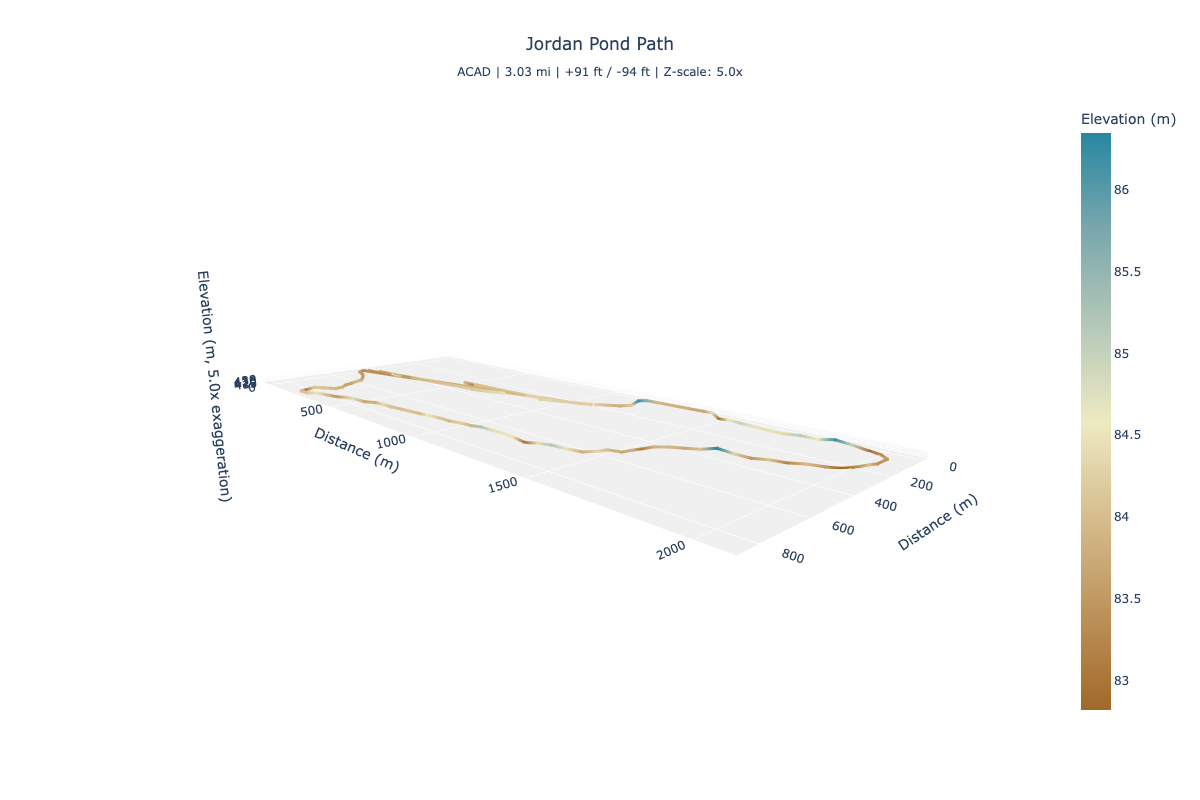
http://localhost:8000/parks/acad/trails/jordan_pond_path/viz/3d
This opens an interactive 3D Plotly visualization. You can rotate, zoom, and pan the trail. The trail is color-coded by elevation using a terrain gradient (brown at lower elevations, cream in the middle, and blue-green at higher elevations). Hover over any point to see its distance along the trail and elevation.
Adjust the vertical scale
By default, the z-axis is exaggerated by a factor of 5 to make elevation changes more visible. You can adjust this with the z_scale parameter (range: 1 to 20):
http://localhost:8000/parks/acad/trails/jordan_pond_path/viz/3d?z_scale=10
A higher value makes elevation changes more dramatic. A value of 1 shows true proportions, which can make trails appear nearly flat.
What makes a trail eligible
Not every trail has a 3D visualization. A trail needs elevation data, which requires this chain:
- You added a hiking point near the trail in your KML files.
- The trail matching step matched that point to a trail geometry.
- The elevation collection step sampled points along the trail and queried the USGS for elevations.
This is why your KML files matter. They determine which trails get elevation data and 3D visualizations.
Note: Unlike the park maps and elevation matrices from the previous sections, 3D trail visualizations don't require the profiling step. The API generates them on-demand from the elevation data already in the database.
Combine and discover
All the filters on the /trails endpoint can be combined. Here are a few queries that answer real questions:
What long trails haven't I hiked in Utah?
curl "http://localhost:8000/trails?state=UT&hiked=false&min_length=5" | python3 -m json.tool
Which of my hiked trails have 3D visualizations?
curl "http://localhost:8000/trails?hiked=true&viz_3d=true" | python3 -m json.tool
From there, pick any trail with a viz_3d_slug and open its 3D visualization in your browser.
Tip: You can also use Python's
requestslibrary, the Swagger UI at/docs, or any HTTP client to query these endpoints.
Semantic and hybrid search
The API supports two flavors of semantic retrieval:
/searchfor direct programmatic semantic search over NPS content/queryfor natural-language routing, where the local LLM decides whether your request is a structured query, a topic query, a stats query, or a park query
Use semantic search when the question includes descriptive intent that is hard to express with normal filters alone, such as waterfalls, slot canyons, kid-friendly hikes, or scenic viewpoints.
Note: Both of these depend on Ollama running locally because they generate embeddings or LLM tool calls at request time. If Ollama is not running,
/searchand/querywill return a503error. (See Prerequisites for details). The ordinary/trailsand/parksendpoints do not require Ollama.
Raw semantic content search
By default, /search returns ranked text chunks from NPS content:
curl "http://localhost:8000/search?q=waterfalls&limit=3" | python3 -m json.tool
This is useful when you want the semantic matches themselves instead of structured trail rows.
Hybrid search with trail resolution
Add resolve_trails=true to bridge semantic matches back to structured trail data:
curl "http://localhost:8000/search?q=waterfalls&resolve_trails=true" | python3 -m json.tool
When trail mappings are found, the response switches to structured trail results with response_type: "trails".
You can combine semantic search with the same kinds of filters you would normally apply to trail queries:
curl "http://localhost:8000/search?q=waterfalls&resolve_trails=true&hiked=true&min_length=5&state=CA" | python3 -m json.tool
That query means: find trails associated with waterfall-related content, then keep only trails you have hiked, at least 5 miles long, in California.
Supported filters in /search?resolve_trails=true:
park_codestatehikedmin_lengthmax_lengthsource
Structured vs semantic search
Use the ordinary /trails endpoint when the request is purely structured:
curl "http://localhost:8000/trails?state=UT&hiked=false&min_length=5" | python3 -m json.tool
Use semantic or hybrid search when the request has a descriptive component:
curl "http://localhost:8000/search?q=slot+canyons&resolve_trails=true&hiked=false" | python3 -m json.tool
The important difference is that hybrid search first finds relevant content semantically, then resolves that content to trails, and only then applies the structured filters. That preserves semantic ranking while still letting you narrow the result set.
Natural language queries
With Ollama running, instead of building query parameters by hand, you can ask questions in plain English using the /query endpoint.
curl -X POST http://localhost:8000/query \
  -H "Content-Type: application/json" \
  -d '{"query": "short hikes in Yosemite"}' | python3 -m json.tool
The response includes these top-level fields:
| Field | Description |
|---|---|
original_query |
Your question as submitted |
interpreted_as |
The structured parameters the LLM extracted (for example, {"park_code": "yose", "max_length": 3}) |
function_called |
Which function was used (for example, search_trails, search_by_topic, search_parks, search_stats, search_park_summary) |
results |
The API results from the dispatched endpoint |
The interpreted_as field is useful for debugging. If the results look wrong, check what parameters were extracted to understand how the LLM interpreted your question.
Example queries
# Structured query: route to trail filters only
curl -X POST http://localhost:8000/query \
  -H "Content-Type: application/json" \
  -d '{"query": "short hikes in Yosemite"}' | python3 -m json.tool

# Semantic topic query: descriptive intent without explicit trail filters
curl -X POST http://localhost:8000/query \
  -H "Content-Type: application/json" \
  -d '{"query": "challenging slot canyons"}' | python3 -m json.tool

# Hybrid query: semantic topic plus structured filters
curl -X POST http://localhost:8000/query \
  -H "Content-Type: application/json" \
  -d '{"query": "waterfall hikes I completed over 5 miles in California"}' | python3 -m json.tool
How it works
The endpoint uses a local LLM (via Ollama) to translate a question into structured parameters for the existing query functions. For purely structured trail requests like short hikes in Yosemite, it routes to search_trails. For descriptive or thematic requests like slot canyons, it routes to search_by_topic. For hybrid requests, it uses the same topic search path but layers in structured filters like state, hiked status, length, and source. Your data never leaves your machine.
For example, the hybrid query above is interpreted roughly as:
- semantic topic:
waterfall hikes - structured filters:
hiked=true,min_length=5,state=CA
When a topic query resolves to trails, the API returns a structured trail result set plus topic context and, when available, a generated summary grounded in the matched content. This is the same result shape the Streamlit app uses to show topic results directly on the map and in the trail table.
The default model is llama3.1:8b (configurable via the OLLAMA_MODEL environment variable). You can swap models by changing the env var and pulling the new model with ollama pull <model_name>.
Note: The
/queryendpoint requires Ollama running on the host machine (not inside Docker). This allows the model to use Metal GPU acceleration on macOS for faster responses.